

How to Set Up Google Search Console & Analytics
You’ve poured weeks of your life into this website. You’ve obsessed over the layout, re-written the "About Me" section ten times, and finally—with a nervous click—you hit "publish." It should be a celebration. But after a few days of checking your empty inbox and seeing zero comments, a heavy realization sets in. You have no idea if anyone is actually there. It feels like you’ve built a beautiful store in the middle of a desert where no roads even exist yet.
The truth is, trying to grow your site traffic without the proper tools is like driving a car with a blacked-out and cracked windshield. You might be moving forward, but you have no clue where you’re actually going or if you’re about to crash headfirst into a big wall. To stop the guessing game, you need to see exactly what is happening under the hood.
This is where Google Search Console and Google Analytics come in. I know "data tools" sound incredibly dry and boring, but these are essentially the most important part of your website. They aren’t just dashboards to glance at once in a while; they are your eyes and ears on the web. One shows you the "how" (how people are finding you in the search results and getting to your site), and the other shows you the "what" (what they actually do once they land there).
I know, staring at a setup screen usually feels about as exciting as watching paint dry—except the paint is giving you a massive headache. The second you see tech terms like "DNS records" or "global site tags", it’s incredibly tempting to just close the laptop, run away, and hope for the best. But stick with me for a minute. We’re going to tackle this together in plain English, minus all the technical ego. By the time we’re finished, you’ll have a clear view of your numbers and a genuine sense of relief, knowing that every hour you've poured into your site is finally being measured.
Why You Need Both Tools (And No, They Aren’t the Same)
Before we get into the "how," let’s clarify the "why." A common mistake is thinking that if you have Google Analytics, you don’t need Search Console, or vice versa.
Google Search Console (GSC) is focused on the relationship between your website and the search engine. It’s "pre-click" data. It tells you which keywords you're ranking for, how often people click your link in the search results, and if Google is having any trouble crawling your pages. If your site has a technical error that’s preventing it from showing up on page one, GSC is the only place that will tell you.
Google Analytics (GA4) is focused on the relationship between your website and your users. It’s "post-click" data. Once someone is on your site, GA4 tracks where they go, how long they stay, and if they actually buy something or sign up for your newsletter.
Think of GSC as the billboard on the highway and GA4 as the security cameras inside your store. You need both to understand the full customer journey.
Step 1: Setting Up Google Search Console
The first stop on our journey is Google Search Console. Since GSC is the primary way Google communicates with site owners, getting this verified is your priority.
Choosing Your Property Type
When you first log into Google Search Console, you’ll be greeted with two choices: Domain or URL Prefix. This is the fork in the road where many people get stuck.
The Domain property is the gold standard. It covers everything: your main site, subdomains (like blog.yoursite.com), and both the http and https versions of your site. It gives you a "big picture" view. However, it requires you to verify via your DNS settings, which can be intimidating for some.
The URL Prefix option is a bit more narrow-minded. It only keeps tabs on the exact address you type in. So, if you register https://www.yoursite.com, it’s going to completely ignore traffic coming to https://yoursite.com (the version without the "www"). It’s definitely the path of least resistance since you can verify it by just dropping a small file onto your server, but it usually leaves you with a fragmented, "split" view of your actual traffic.
For most people, I highly recommend the Domain option. It’s cleaner, more comprehensive, and ensures you aren't missing any "hidden" traffic coming through a different version of your URL.
The Verification Process
Once you’ve entered your domain, Google needs proof that you actually own it. They aren't just going to give out your private search data to anyone.
If you chose the Domain property, you’ll be given a string of text (a TXT record). You’ll need to log into your domain registrar—places like Namecheap, GoDaddy, or Bluehost. Navigate to the "DNS Management" or "Advanced DNS" section. Here, you’ll add a new record. Select "TXT" as the type, use "@" for the host/name field, and paste Google’s code into the value field.
If you chose the URL Prefix property, you have more options. You can download an HTML file and upload it to your website’s root folder via FTP, or you can copy a "Meta Tag" and paste it into the <head> section of your website’s code. If you use WordPress, plugins like Yoast SEO or Rank Math make the Meta Tag method incredibly easy—you just paste the code into a box in the plugin settings and hit save.
After you’ve added the record or the tag, go back to the Search Console and click "Verify." Don't panic if it doesn't work instantly. DNS changes can sometimes take a few minutes (or occasionally hours) to propagate across the internet and work.
Step 2: Setting Up Google Analytics 4 (GA4)
Now that Google knows it's you who owns the site, it’s time to start tracking all your user behavior. As of 2026, GA4 is now the standard. GA4 is a powerful, event-based system that’s way more flexible than the older versions of Analytics that were available.
Creating Your Account and Property
Head over to the Google Analytics website. If you’ve never used it before, you’ll click "Start Measuring." You’ll be asked to create an Account (this is usually your business name) and then a Property (this is the specific website or app you want to track).
Make sure you set both your reporting time zone and currency correctly. It sounds like a really small detail, but trying to calculate your ROI when your data is in a different currency is a headache you don't want.
Setting Up a Data Stream
In GA4, "Data Streams" are the sources of your data. Since we’re setting up a website, you’ll select "Web" as your platform. Enter your website’s URL and give the stream a name (like "Main Website").
You’ll see a toggle for Enhanced Measurement. Always keep this turned on. It automatically tracks things like scrolls, outbound clicks, site searches, and video engagement without you having to write even a single line of custom code. It’s a massive time-saver and very useful.
Installing the Tracking Tag
After creating the stream, you’ll get a Measurement ID (it starts with "G-"). Now you need to get the tracking code onto your site.
If you are using a CMS like Shopify, Wix, or Squarespace, you usually don't need to touch any code. You simply find the "Google Analytics" section in your settings and paste your Measurement ID.
If you’re on a custom site or prefer a manual approach, you’ll need to use the "Google Tag" (gtag.js). Google will provide a snippet of JavaScript code. You need to copy this and paste it as the very first item in the <head> of every page on your website.
Alternatively, if you use Google Tag Manager (GTM), you can create a "Google Tag" and use your Measurement ID there. GTM is slightly more advanced, but it really is the best way to manage multiple tracking scripts without cluttering your website’s code.
Step 3: Connecting the Two Worlds
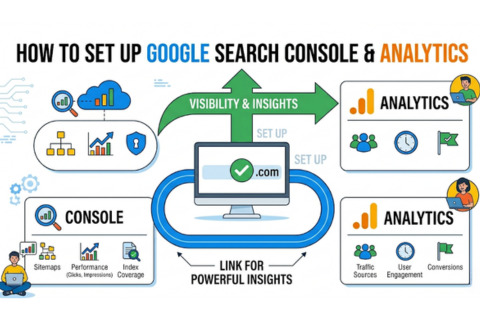
This is the step most people often end up skipping, yet it’s probably the most important piece for getting a "unified" view of your SEO. By linking Search Console and Google Analytics together, you can easily see all your search query data directly inside your Analytics reports.
Inside Google Analytics, click on the "Admin" gear icon at the bottom left. Look for a section called Product Links and click on Search Console Links.
Click the "Link" button. You’ll be prompted to "Choose accounts." If you’re signed in with the same Google account for both GSC and GA4, your website should pop up in the list. Select it and click "Confirm."
Next, you’ll need to select a Web Stream. Choose the data stream you created in Step 2. Review the settings and hit "Submit."
Now, your data will begin to flow between the two. Note that it won't show up immediately; it usually takes about 24 to 48 hours for the integration to start populating reports. Once it does, you’ll find a new "Search Console" report section under your Acquisition reports in GA4.
Step 4: The Final Essential—Submitting Your Sitemap
You’ve verified ownership and set up tracking. There is one final "technical" task to ensure Google finds your content as fast as possible: submitting a sitemap.
A sitemap is essentially a map of your website that tells Google exactly where all your pages are. Instead of waiting for Google’s "spiders" to stumble upon your pages through links, you’re handing them a directory.
Most modern websites generate a sitemap automatically. If you use WordPress, it’s usually found at yoursite.com/sitemap_index.xml. On other platforms, it might be yoursite.com/sitemap.xml.
Go back to Google Search Console, click on Sitemaps in the left-hand menu, paste the last part of that URL (the sitemap.xml part), and click "Submit." Google will now periodically check this file to see if you’ve added new pages or updated old ones, making your SEO much more efficient.
How to Tell if Your SEO is Actually Working
Once the "plumbing" is done and the data starts rolling in, how do you actually use it?
In Search Console, look at the Performance report. Pay attention to "Total Impressions." If this number is going up, it means Google is showing your site to more people. If "Total Clicks" is going up, it means your titles and descriptions are enticing enough for people to actually visit. If your impressions are high but clicks are low, you might need to rewrite your meta descriptions to be more "clickable."
In Google Analytics, look at the Traffic Acquisition report. Check the "Organic Search" channel. This tells you how many people are coming directly from search engines. But don't just look at the raw numbers; also look at the "Engagement Rate." If people are coming from search but leaving after three seconds, your SEO might be bringing in the wrong kind of traffic, or your landing page might not be delivering on its promise.
Technical Troubleshooting and Common Pitfalls
Even with a perfect guide, technology can be temperamental. Here are a few things to keep an eye on if things aren't looking right.
The most common issue is Verification Failure. If you are using the DNS method, ensure you haven't added extra spaces or quotes to the TXT record. If you are using the Meta Tag method, make sure it is actually in the <head> and not the <body>. Sometimes, aggressive caching plugins on your website can "hide" the tag from Google, so try clearing your site's cache if the verification fails.
Another common worry is "No Data" in Search Console. If your site is brand new, it is perfectly normal to see a "Processing data" message for a few days. Google needs time to gather enough information to show you a meaningful report.
Finally, keep an eye on Duplicate Tracking. If you installed the GA4 code via a plugin and manually in the header, you might end up with double-counted data (which makes it look like you have twice as many visitors as you actually do). Always pick one method and stick to it.
You Are Now Flying with Instruments
Before today, you were likely "flying blind," guessing at what worked and what didn't. Now, you have a flight deck of data at your fingertips.
Setting up Google Search Console and Analytics is an investment in your website's future. It might feel like a chore while you’re doing it, but the first time you see a keyword you’ve been targeting climb the rankings in Search Console, or you see a sale in Analytics that started with an organic search, it will all be worth it.
SEO is a marathon, not a sprint. But at least now, you have a stopwatch and a clear track to run on. Keep an eye on those reports, stay curious about your data, and you’ll be amazed at how much faster you can grow when you can actually see where you're going.